Digital File Preparation

Setting the stage for print perfection

Trusted by South Florida Businesses for Over 20 Years

Start Your Project Today

File Formats

We can accept a wide range of file formats, but we strongly prefer PDF files. Submitting your artwork as a PDF helps prevent issues with fonts, images, text, or formatting, and it also increases the likelihood of a faster turnaround time.

  • .PDF

  • .AI

  • .JPG

  • .TIFF

  • .PNG

  • .PSD

  • .EPS

  • Packaged InDesign Files

Color

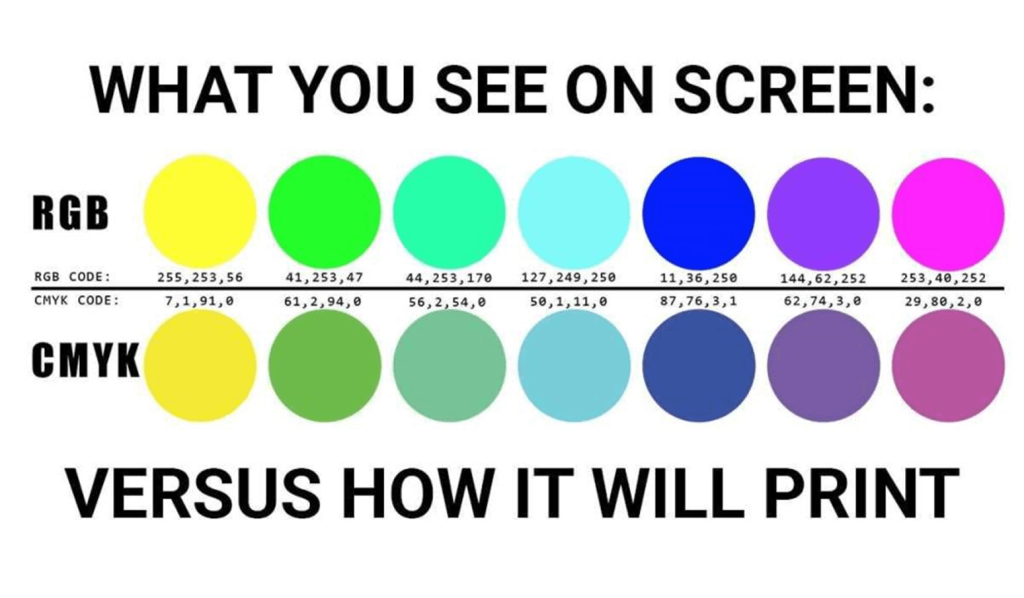
If your artwork is submitted in RGB format, there may be a color shift when we convert it to CMYK. While RGB is the standard for digital displays, CMYK is used for printed materials. To ensure accurate color reproduction in your final print, we recommend designing your artwork directly in CMYK.

Rich Black vs. 100% K Black:
What's the Difference?

Why Does My Black Look Washed Out?

If you’ve ever sent a design to print and been surprised by how dull the blacks looked compared to your screen, you’re not alone. It’s one of the most common print surprises and it comes down to how black is actually built in a CMYK print environment.

Not All Blacks Are The Same

When designers talk about “black,” they usually mean one of two things: a simple single-ink black (100% K), or a mixed-ink black often called Rich Black

100% K Black uses only the black ink channel in a CMYK press. It’s clean and efficient and great for small body text, fine lines, or anything where ink overlap could cause registration issues. But on larger areas, it can look flat or slightly gray, especially next to vivid colors.

Rich Black is built by layering multiple ink channels together – typically a combination of Cyan, Magenta, Yellow, and Black – to produce a deeper, denser appearance. A common formula is C: 60, M: 40, Y: 40, K: 100, though variations exist depending on the press and paper stock. The result is a black that looks noticeably richer and more saturated in large fills, backgrounds, and bold display text.

Why Can't I Just Use What I See on Screen?

Your monitor emits light, creating color additively, by combining red, green, and blue light. Printing, on the other hand, works subtractively: inks absorb certain wavelengths of light and reflect others. The deep, almost luminous black you see on a backlit screen simply cannot be replicated with a single ink on paper. Rich Black is the closest approximation that offset and digital printing can achieve.

When to Use Each

Situation

Recommended Black

Body text (8pt and under)

100% K

Fine lines and small details

100% K

Large background fills

Rich Black

Bold headlines and display text

Rich Black

Grayscale / B&W documents

100% K

Using Rich Black on small text can cause a blurry or “shadowed” effect if the ink layers shift even slightly during printing, a phenomenon called misregistration. Keep small text clean with 100% K only.

Before You Send to Print

Always check your black values before exporting your final files. If you’re designing for large-format or full-color commercial printing, ask your print provider for their recommended Rich Black formula as it can vary by press type and substrate. When in doubt, design in Rich Black for visual elements and switch to 100% K for any text below 14pt.

Bleeds

We highly recommend that all submitted artwork has bleeds and crop marks.

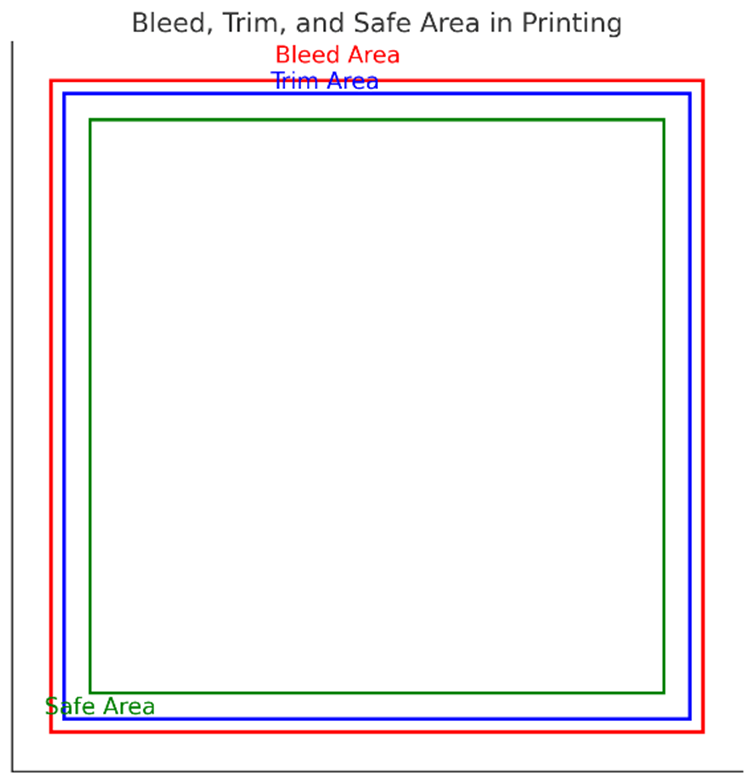
In printing, a “bleed” refers to the area of a design that extends beyond the edge of the final trimmed size. This extra margin ensures that there are no white edges left when the paper is cut to size, even if the cut is slightly off. Typically, designers include a bleed of about 1/8 inch (3mm) around the edges of the artwork. This allows for a clean, professional finish with no unintentional white borders.

For more detailed instructions on adding bleed to your designs, see below.

Bleed Instructions

If you are working in Adobe Illustrator or InDesign, then go to File>Document Setup… and adjust the bleed setting from there (typically .125 inches all around).

  • Illustrator

    When the bleed is properly set, you will notice it as a thin red guide surrounding your artboard. Make sure to extend artwork to this red guideline.

    When saving the file as a pdf from Illustrator, the software will automatically set the trim and bleed box so long as it was set-up properly.

  • InDesign

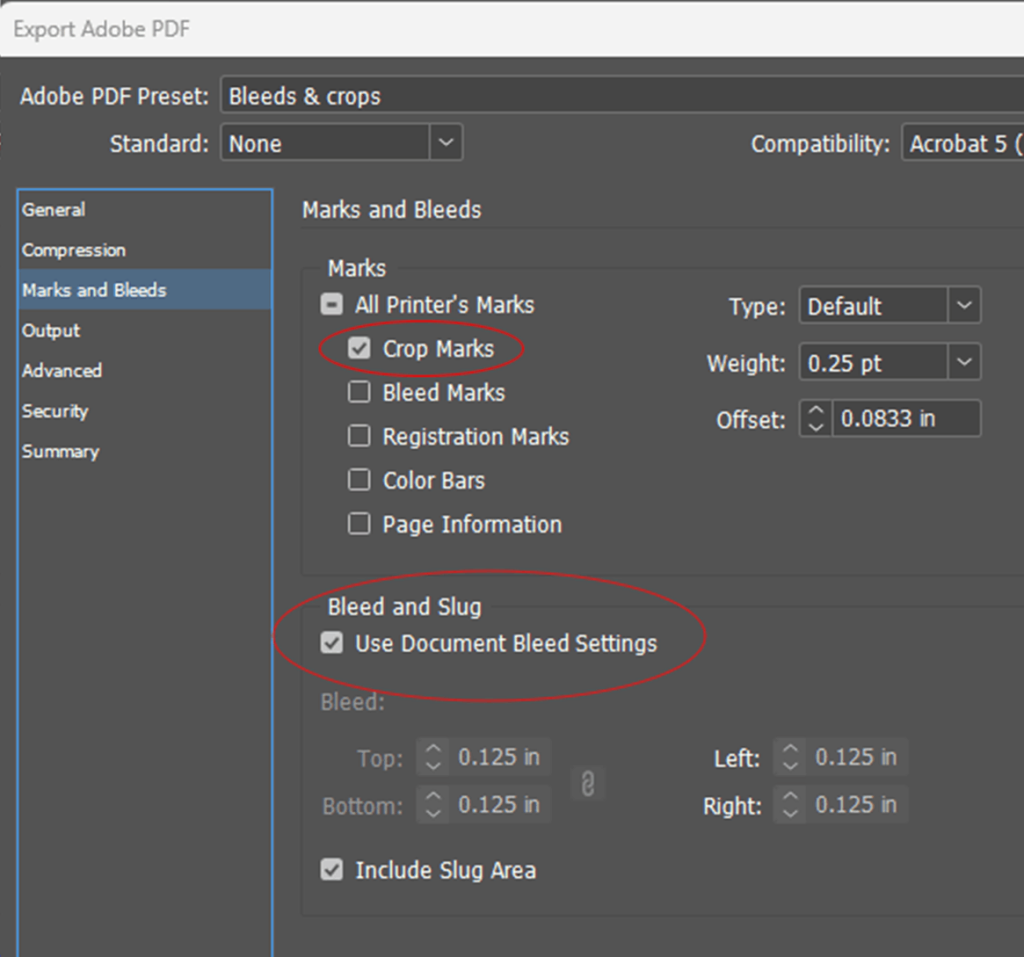
    When Exporting the file to pdf from InDesign, you need to click on the Marks and Bleeds tab, and then check the box for Crop Marks and Use Document Bleed Settings (seen below). This will then correctly set the trim box, bleed box, and crop marks for use in professional printing.

  • Photoshop

    If you are working solely in Photoshop, you will have to manually generate bleeds for your design. This can be done by expanding the canvas on all sides and filling it with the leading edge colors.

Large Format Printing

Large format printing is typically for use in signage, banners, posters, and other promotional materials. High resolution images are a very important factor when designing for large format. Please consider the loss in image quality when blowing-up and image by 300% for example. A better alternative is to use vectors in your large format designs as all vector art is infinitely scalable without loss of quality.

Large format raster graphics should be no less than 150 dpi when viewed at 100%.

We do not require the use of bleeds or crop marks for large format files, but we do prefer that the artwork is submitted at the proper dimensions with any typography expanded into outline vectors (not editable text).

Need help?

For more detailed instructions or any questions, contact us today to ensure your artwork meets all requirements for optimal printing results.

Contact Us